> For the complete documentation index, see [llms.txt](https://echelp.weaver.com.co/llms.txt). Markdown versions of documentation pages are available by appending `.md` to page URLs; this page is available as [Markdown](https://echelp.weaver.com.co/permission-center/organizational-application-permission-decentralization-settings.md).
# Organizational Application Permission Decentralization Settings
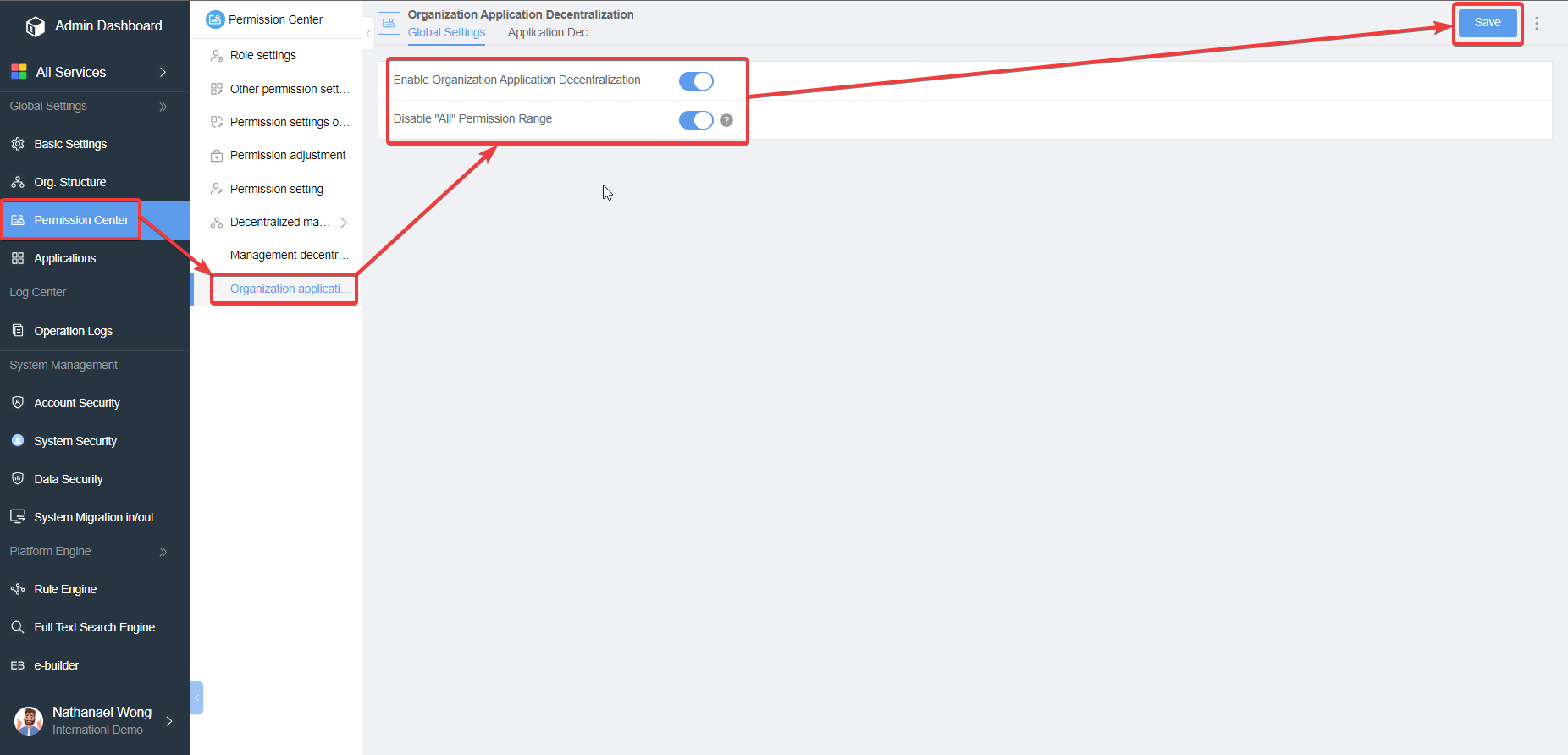
The organization and application decentralization feature is used to control frontend users' access to specific branches or departments when querying personnel or organization structures and selecting personnel through browse buttons.
Unlike management decentralization, application decentralization focuses on controlling the frontend organizational scope, while management decentralization controls the backend menu maintenance permission scope.
In simple words, this function controls which users/ departments/ divisions or any other entities users can see in the frontend.
\
Switch Descriptions:
1. Enable Organizational Application Decentralization: This is the master switch for the application decentralization feature.
2. Disable "Everyone" Permission Scope: When the system decentralization feature is enabled, the option to use "Everyone" in shared components will be disabled.
3. After enabling Organizational Application Decentralization, the system will initialize a common scope as shown in Figure 2. The common scope will grant permissions only to the same department and its sub-departments:
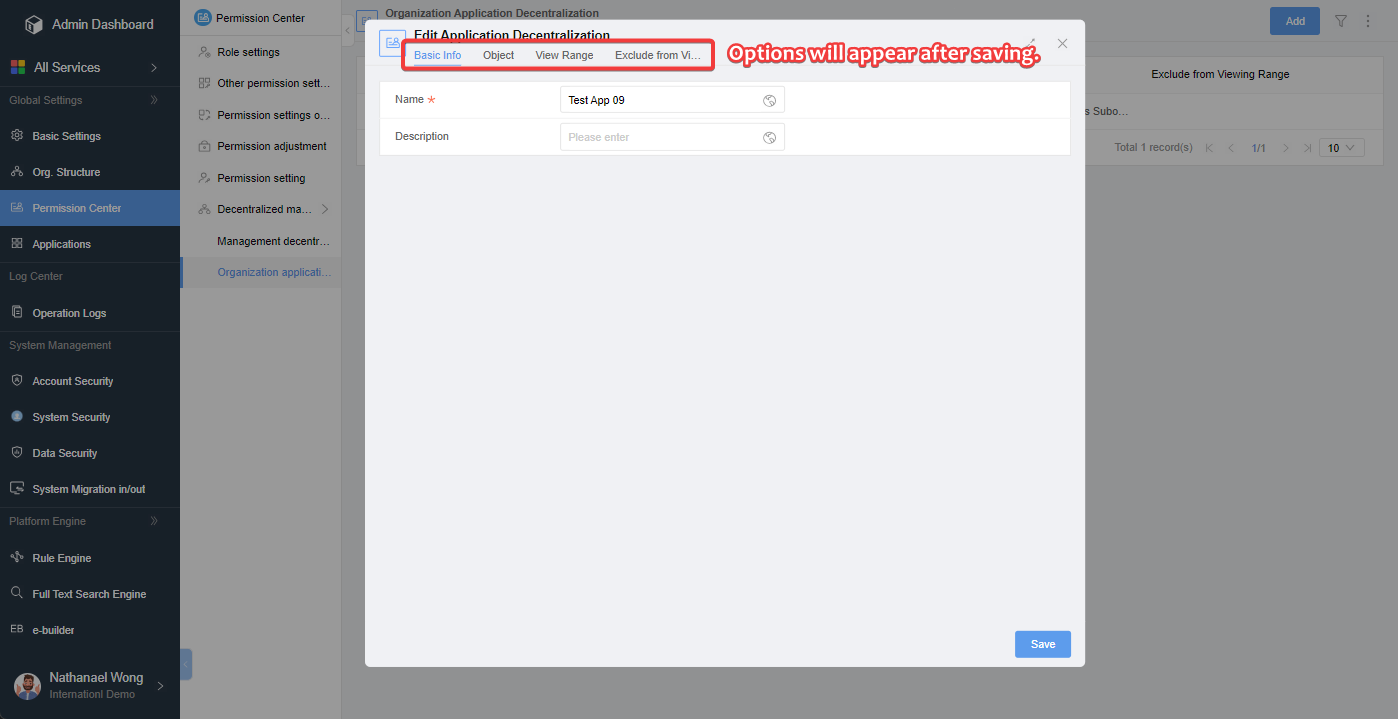
## Applying Settings to New Organizational Applications
### Description for each tab:
Object: Set the controlled object, determining who can view it. You can set the object based on individuals, departments, branches (visible when the organizational structure is configured with branches), roles, groups, positions, or everyone.
Viewing Scope: Refers to who can be viewed. It includes eight options: "All," "Same Department," "Subordinate of the Same Department," "Same Department and Subordinates," and "Specified Range".
Exclude from Viewing Scope: Personnel chosen in this option will be excluded from the "Viewing scope". \
\
Example: Let's say, Department R\&D has four employees, A, B,C and D. We want everyone in the department to be able to be viewed in this application except for D. So we select "Department > R\&D" in the "Visible Range" option and then select "Personnel > D" in the Exclude from Viewing" option.
Note : If multiple visible / non-visible rules are set for a certain object (or entity), the system will first combine the range of "visible" then exclude the "non-visible" from the union.
## Effect in the Frontend (Example)
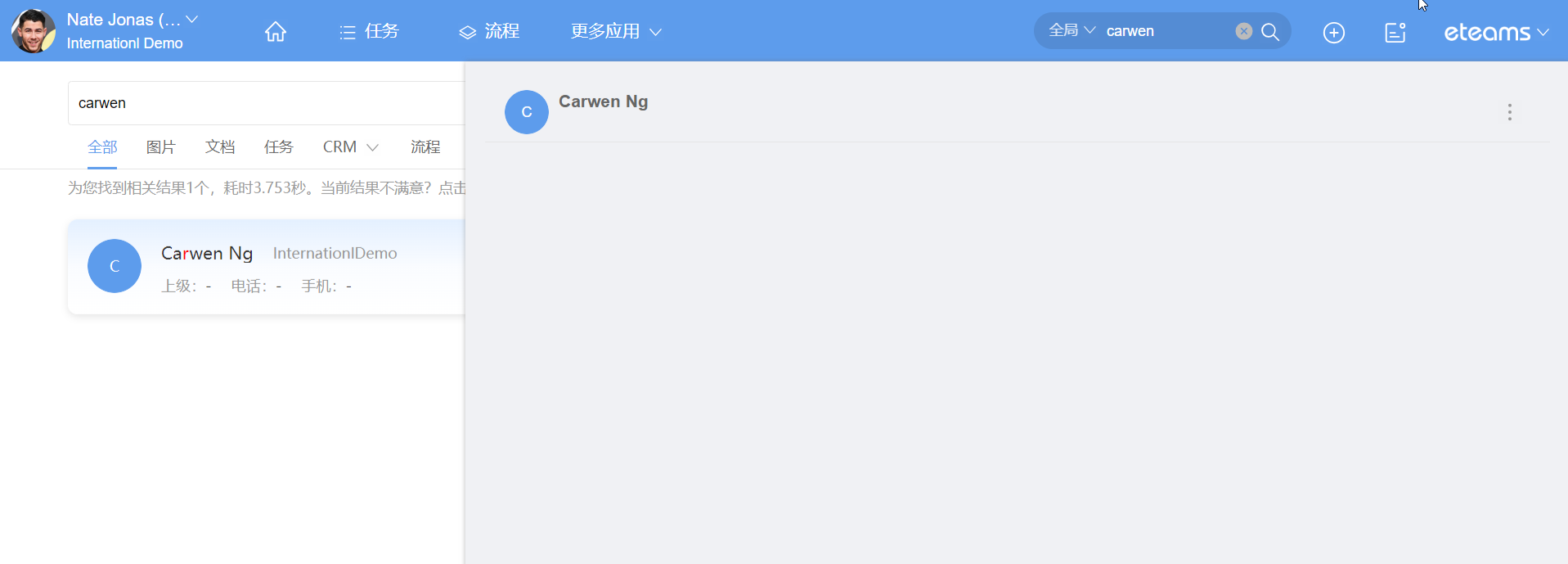
When a user is opening a profile page that they have no access to, they will see a blank page as such: